Update a Managed File
Please note
Only principal users can upload and publish a new version of a Managed File.
Upload and publish a new version of an existing managed file.
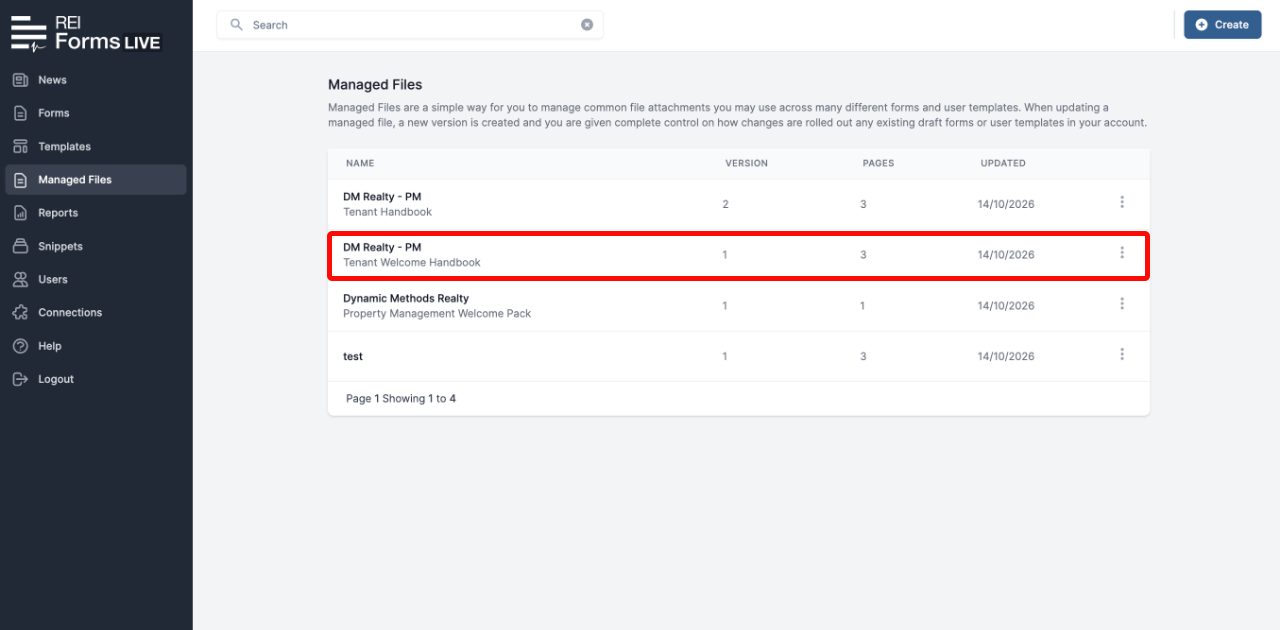
Click
Managed Filesin the left-hand menu.Click the three vertical dots at the end of the managed file’s row.
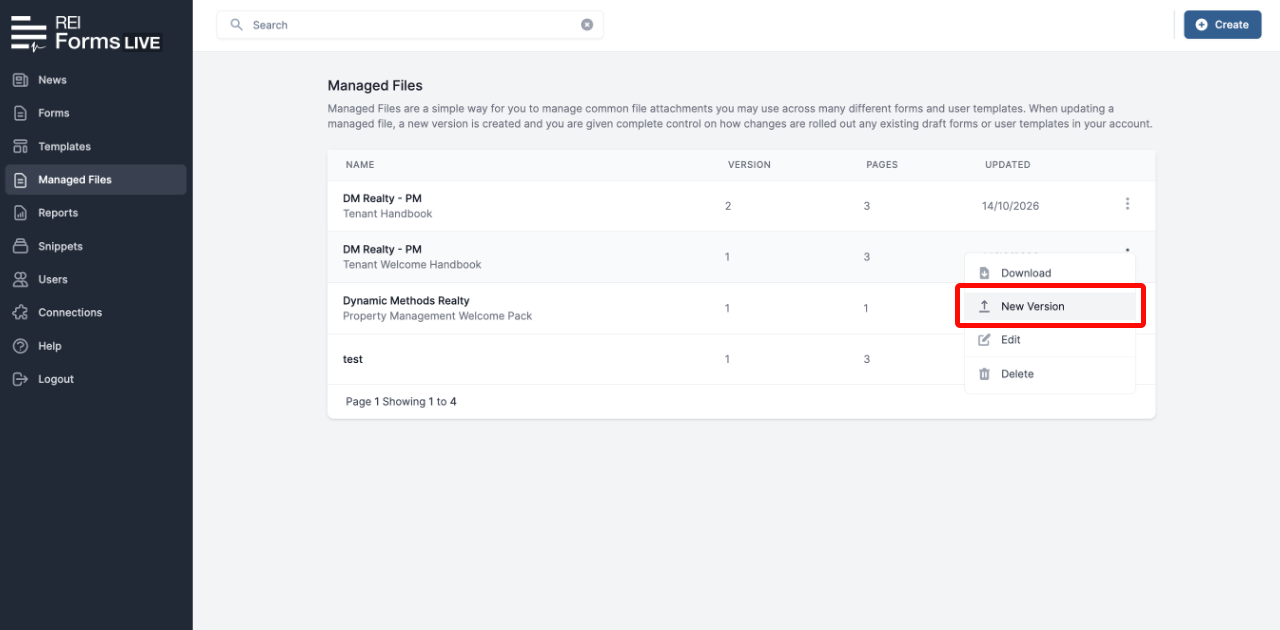
- Select
New Versionfrom the dropdown menu.
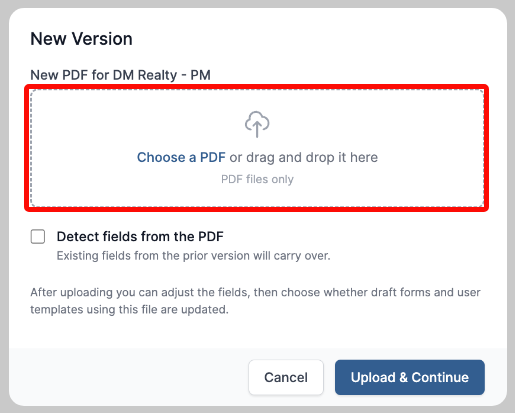
- Click
Choose a pdfto select the replacement PDF, or drag and drop it into the PDF File box.
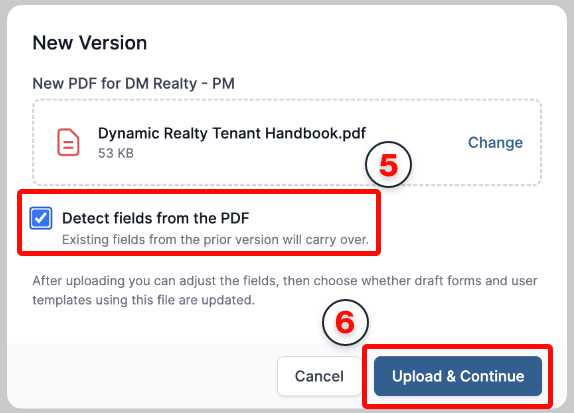
Select
Detect fields from the PDFto detect existing form fields in the uploaded PDF.Click
Upload & Continue.
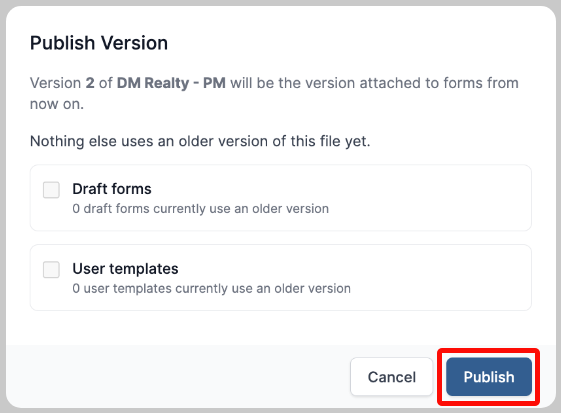
In the
Publish Versiondialog, review the draft forms and user templates that the current version is attached to.Click
Publishto replace the current version of the managed file.
note
The new version, eg. Version 2, will be used when the managed file is attached to forms going forward.